Home › Resources › 50 Linux Commands Every Kali Linux User Must Know: The Ultimate Cheat Sheet
Resources50 Linux Commands Every Kali Linux User Must Know: The Ultimate Cheat Sheet
By Himanshu Borikar • 2026-07-23 • 15 min read
Mastering the Linux command line interface (CLI) is the foundational skill required for penetration testing, cybersecurity auditing, system administration, and software engineering. Whether navigating file systems, inspecting process memory, configuring network interfaces, or executing automated security scripts, fluency in Linux terminal commands distinguishes master engineers from novices.
In this official @Layer8sec technical reference guide, we transcribe and analyze the essential 50 Linux Commands Every Kali Linux User Must Know. This cheat sheet is organized into 6 core operational modules:
- 01 Navigation & Core Basics (Commands 1 to 6)
- 02 File & Directory Management (Commands 7 to 16)
- 03 Reading, Searching & Filtering (Commands 17 to 25)
- 04 Permissions & Power User Tools (Commands 26 to 32)
- 05 System Status & Process Management (Commands 33 to 40)
- 06 Networking, Web & Admin Tools (Commands 41 to 50)
Module 01: Navigation & Core Basics
Navigation commands allow operators to inspect user contexts, print active directory paths, enumerate directory trees, traverse directory structures, and inspect command execution logs.
| # | Command | Description | Example Usage |
|---|---|---|---|
| 1 | whoami | Prints the username of the currently logged-in user. | $ whoamiroot |
| 2 | pwd | Prints the full absolute path of your current working directory. | $ pwd/root/Desktop |
| 3 | ls | Lists files and folders in the current directory. -l shows detailed permissions/timestamps, -a shows hidden files, -la combines both. | $ ls$ ls -l$ ls -la$ ls -la /etc |
| 4 | cd | Changes the current directory. cd .. steps one directory level up, cd ~ navigates to home directory. | $ cd /var/log$ cd ..$ cd ~$ cd /home/kali/Desktop |
| 5 | clear | Clears all text from the active terminal screen. Shortcut: Ctrl + L. | $ clear |
| 6 | history | Shows a numbered list of previously executed terminal commands. Use !N to re-run command number N. | $ history497 ls -la498 cd /etc499 cat passwd$ !498 (re-runs: cd /etc) |
Module 02: File & Directory Management
File management commands govern the creation, editing, copying, relocating, linking, and permanent destruction of system files and directory trees.
| # | Command | Description | Example Usage |
|---|---|---|---|
| 7 | mkdir | Creates a new directory. Use -p to create nested parent directories in a single command. | $ mkdir projects$ mkdir -p recon/scans/tcp |
| 8 | touch | Creates a new empty file. If the target file already exists, it updates its last modified timestamp. | $ touch notes.txt$ touch exploit.py |
| 9 | echo | Prints text to the terminal standard output stream. Use > to overwrite a file, >> to append text to a file. | $ echo "Hello Kali"$ echo "192.168.1.1" > targets.txt$ echo "10.0.0.2" >> targets.txt |
| 10 | nano | A simple, beginner-friendly terminal text editor. Press Ctrl+O to save and Ctrl+X to exit. | $ nano notes.txt$ nano /etc/hosts |
| 11 | vim | A powerful modal terminal text editor. Opens in Normal mode by default. Press i to enter Insert mode. Press Esc then :wq to save and quit. :q! to quit without saving. | $ vim script.py-- press i to type ---- press Esc --:wq (save and quit):q! (quit without saving) |
| 12 | cp | Copies a file to a new location or new filename. Use -r to recursively copy an entire directory. | $ cp file.txt backup.txt$ cp file.txt /tmp/$ cp -r myfolder/ /tmp/myfolder/ |
| 13 | mv | Moves a file to a new location OR renames it. If destination is a name, it renames; if a directory path, it moves. | $ mv old.txt new.txt *(rename)*$ mv file.txt /home/kali/ *(move)*$ mv folder/ /tmp/folder/ (move dir) |
| 14 | rm | Deletes a file permanently. Use -r to recursively delete a directory and its contents. WARNING: There is no recycle bin - deleted files cannot be recovered. | $ rm file.txt$ rm -r myfolder/$ rm -rf /tmp/olddata/ (force, no prompt) |
| 15 | rmdir | Removes an empty directory only. If the directory contains files, use rm -r instead. | $ rmdir emptyfolder$ rmdir /tmp/testdir |
| 16 | ln | Creates a link to a file. -s creates a symbolic (soft) link, acting as a path shortcut. | $ ln -s /usr/share/wordlists/rockyou.txt ~/rockyou.txt$ ls -la ~/rockyou.txtlrwxrwxrwx ... rockyou.txt -> /usr/share/wordlists/rockyou.txt |
Module 03: Reading, Searching & Filtering
Inspecting log files, filtering credential lists, and parsing network payloads require dedicated pattern matching and file inspection tools.
| # | Command | Description | Example Usage | |
|---|---|---|---|---|
| 17 | cat | Prints the full contents of a file to the terminal standard output. Also used to concatenate multiple files into one. | $ cat notes.txt$ cat /etc/passwd$ cat file1.txt file2.txt | |
| 18 | less | Opens a file for interactive page-by-page scrolling. Use arrow keys to navigate. Press Q to quit. Press / to search text inside. | $ less /var/log/auth.log$ less /usr/share/wordlists/rockyou.txt*(press Q to quit)* | |
| 19 | head | Displays the first 10 lines of a file by default. Use -n to specify a custom line count. | $ head /etc/passwd$ head -5 /etc/passwd$ head -20 access.log | |
| 20 | tail | Displays the last 10 lines of a file by default. Use -f to continuously follow a file live as new lines are logged. | $ tail /var/log/syslog$ tail -20 /var/log/auth.log$ tail -f /var/log/syslog (live follow) | |
| 21 | wc | Counts lines, words, and characters in a file. -l counts lines only, -w words only, -c bytes only. | $ wc /etc/passwd45 90 2452 /etc/passwd$ wc -l /usr/share/wordlists/rockyou.txt14344391 rockyou.txt | |
| 22 | stat | Displays detailed metadata about a file or filesystem node: size, inode, octal permissions, owner, and modified timestamps. | $ stat notes.txtFile: notes.txtSize: 128Access: (0644/-rw-r--r--)Modified: 2026-05-29 10:22:31 | |
| 23 | grep | Searches for regular expression patterns inside a file or command output stream. -i ignores case, -r searches recursively, -n displays line numbers. | $ grep "root" /etc/passwd$ grep -i "error" syslog$ grep -r "password" /var/www/`$ ps aux \ | grep ssh` |
| 24 | find | Searches for files and directories anywhere in the system hierarchy. -name filters by filename, -type f limits to regular files, -type d limits to directories. | $ find / -name "passwd" 2>/dev/null$ find . -name "*.txt"$ find / -type f -perm -4000 2>/dev/null (finds SUID files) | |
| 25 | diff | Compares two text files line by line and highlights exact structural differences. < indicates lines in file1; > indicates lines in file2. | $ diff original.conf modified.conf2c2< ServerName localhost---> ServerName 10.0.0.5 |
Linux Terminal Execution Flow & Command Pipeline
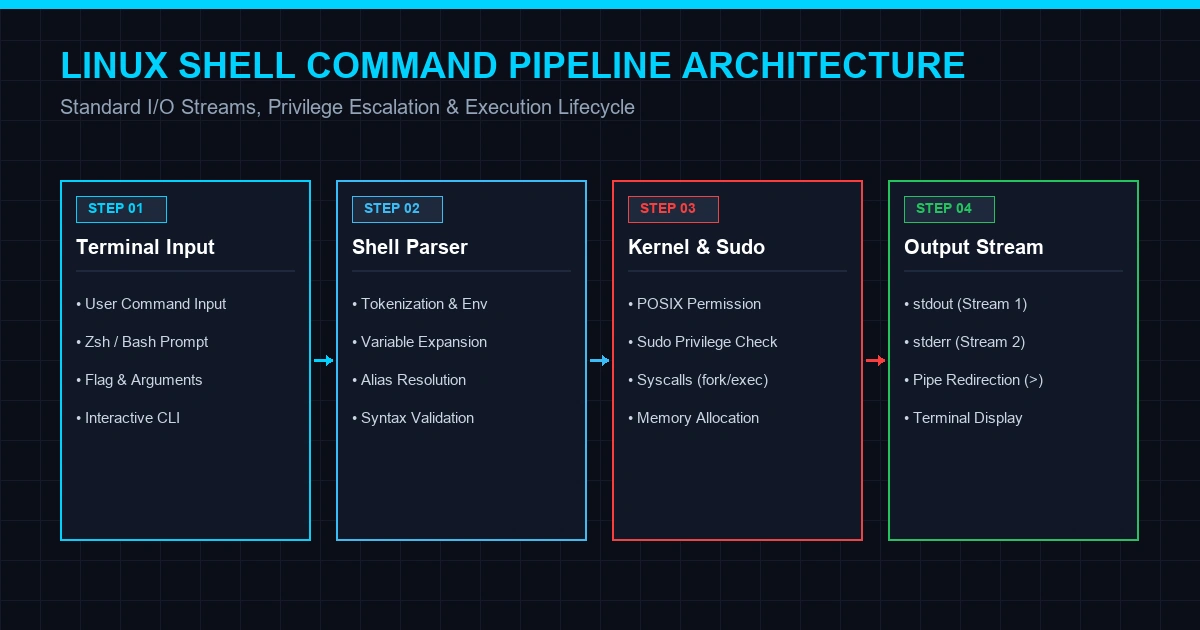
Modern Linux shells (such as Bash and Zsh in Kali Linux) process terminal commands through a structured execution pipeline. Understanding how user prompts transition into privilege validation and kernel syscalls ensures optimal security auditing.
+-----------------------------------------------------------------------+
|                 50 Linux Commands Execution Pipeline                  |
+-----------------------------------------------------------------------+
|  [User Terminal Input] ($ command args)                               |
|        |                                                              |
|        v                                                              |
|  [Shell Parser & Tokenizer] (Zsh / Bash Expansion)                    |
|        |                                                              |
|        v                                                              |
|  [Privilege & Permission Gatekeeper] (POSIX Audit / Sudo Check)       |
|        |                                                              |
|        v                                                              |
|  [Kernel Syscall Execution] (Fork / Execve / System Memory)           |
|        |                                                              |
|        v                                                              |
|  [Standard I/O Streams] (stdin = 0, stdout = 1, stderr = 2)           |
|        |                                                              |
|        v                                                              |
|  [Terminal Display Output / File Output Redirection]                  |
+-----------------------------------------------------------------------+
Module 04: Permissions & Power User Tools
Linux security is enforced through strict POSIX read (r=4), write (w=2), and execute (x=1) permissions alongside superuser privilege escalation.
| # | Command | Description | Example Usage |
|---|---|---|---|
| 26 | sudo | Runs a command with superuser (root administrator) privileges. You will be prompted for your user password. | $ sudo apt update$ sudo systemctl start ssh$ sudo nano /etc/hosts |
| 27 | !! | Repeats the last typed command exactly. Highly useful when forgetting to prepending sudo before a privileged operation. | $ apt updateE: Could not open lock file... Permission denied$ sudo !!*(runs: sudo apt update)* |
| 28 | chmod | Changes the read/write/execute permissions of a file or directory. +x adds execute permission. Octal numbers: 7=rwx, 6=rw-, 5=r-x, 4=r--, 0=---. | $ chmod +x script.sh$ chmod 755 script.sh (rwxr-xr-x)$ chmod 644 file.txt (rw-r--r--)$ chmod 777 shared.txt (rwxrwxrwx) |
| 29 | chown | Changes the user owner and/or group ownership of a file or directory. Format: chown owner:group file. Use -R for recursive processing. | $ chown kali:kali file.txt$ chown root:root /usr/bin/script$ chown -R www-data:www-data /var/www/ |
| 30 | man | Opens the built-in manual documentation page for any command. Displays all flags, switches, and usage syntax. Press Q to exit. | $ man ls$ man grep$ man nmap*(press Q to quit, / to search inside)* |
| 31 | passwd | Changes the password for a user account. Executing without arguments updates the currently authenticated user's password. | $ passwdChanging password for kali.Current password:New password:Retype new password:passwd: password updated successfully |
| 32 | which | Displays the full absolute binary path of where an executable command is installed on the system $PATH. | $ which python3 -> /usr/bin/python3$ which nmap -> /usr/bin/nmap$ which bash -> /usr/bin/bash |
Module 05: System Status & Process Management
Monitoring system resource consumption, memory allocation, active process trees, and process termination is critical for maintaining server stability.
| # | Command | Description | Example Usage | |
|---|---|---|---|---|
| 33 | uname | Displays operating system and Linux kernel information. -a displays all system details: kernel name, hostname, kernel release, and CPU architecture. | $ unameLinux$ uname -aLinux kali 6.6.9-amd64 #1 SMP x86_64 GNU/Linux$ uname -r6.6.9-amd64 | |
| 34 | df | Displays disk space usage for all mounted filesystems. -h formats byte sizes into human-readable units (KB, MB, GB). | $ df -hFilesystem Size Used Avail Use% Mounted on/dev/sda1 50G 18G 30G 38% /tmpfs 2.0G 0 2.0G 0% /dev/shm | |
| 35 | free | Displays total, used, and available RAM and swap memory allocation. -h displays sizes in human-readable units. | $ free -htotal used freeMem: 7.7G 1.2G 6.5GSwap: 975M 0B 975M | |
| 36 | top | Displays a live, real-time updating dashboard of running processes, CPU utilization, and RAM allocation. Press Q to quit. Press M to sort by memory. Press P to sort by CPU. | $ top*(live updating every 3 seconds)* *(Press Q to quit, M to sort by memory, P for CPU)* | |
| 37 | htop | An enhanced, interactive, color-coded process viewer. Offers mouse support and arrow-key navigation. Press F9 to terminate a process. | $ htop*(install first: sudo apt install htop)* *(Arrow keys to navigate, F9 to kill process, Q to quit)* | |
| 38 | ps | Generates a static snapshot of currently running processes. ps aux lists all processes across all users with full command line details. | $ ps$ ps aux`$ ps aux \ | grep firefox |
| 39 | kill | Sends a termination signal to a process using its Process ID (PID). Use kill -9 to issue SIGKILL for un-responsive processes. | `$ ps aux \ | grep gedit *(graceful stop)*$ kill -9 3821` (force kill) |
| 40 | shutdown | Safely powers off or reboots the machine. -h halts (powers off), -r reboots, now executes immediately. | $ shutdown -h now *(power off now)*$ shutdown -r now *(reboot now)*$ shutdown -h +10 *(power off in 10 min)*$ shutdown -c (cancel scheduled shutdown) |
Module 06: Networking, Web & Admin Tools
Network diagnostic tools, secure shell tunnels, HTTP downloaders, service controls, and anti-forensic shredding utilities form the network administration layer.
| # | Command | Description | Example Usage |
|---|---|---|---|
| 41 | ssh | Establishes an encrypted Secure Shell tunnel to a remote computer. Use -p to specify custom SSH ports, -i to authenticate with a private key. | $ ssh kali@192.168.1.10$ ssh root@10.10.10.5$ ssh -p 2222 user@192.168.1.10$ ssh -i id_rsa user@10.10.10.5 |
| 42 | ip | Displays and configures network interfaces, IP addresses, and routing tables. ip a is shorthand for ip address. ip r shows active routing paths. | $ ip address$ ip a *(short form)*$ ip a show eth0 *(specific interface)*$ ip route (routing table) |
| 43 | ifconfig | Legacy network interface configuration utility. Displays IP addresses, netmasks, and MAC addresses. (May require: sudo apt install net-tools) | $ ifconfigeth0: flags=4163 inet 192.168.1.100 netmask 255.255.255.0$ ifconfig eth0 (specific interface) |
| 44 | ping | Transmits ICMP Echo Request packets to test host reachability and measure round-trip latency. Press Ctrl+C to stop. Use -c N to send N packets. | $ ping google.com$ ping 192.168.1.1$ ping -c 4 8.8.8.864 bytes from 8.8.8.8: icmp_seq=1 ttl=118 |
| 45 | wget | Non-interactive downloader that fetches files from HTTP, HTTPS, or FTP servers. Includes progress bars and auto-resume capabilities. | $ wget https://example.com/file.zipResolving example.com...100%[=========>] 10.5M 2.1MB/s in 5sfile.zip saved |
| 46 | curl | Multi-protocol command line utility for transferring data to/from servers. -O saves output using the remote filename; -o specifies a custom destination name. | $ curl https://example.com$ curl -O https://example.com/file.zip$ curl -o myfile.zip https://example.com/file.zip$ curl https://wttr.in (shows live weather!) |
| 47 | tar | Archives and compresses files into .tar.gz archives. -c create archive, -x extract, -z gzip compress, -v verbose, -f file name. | $ tar -czvf archive.tar.gz folder/ *(compress)*$ tar -xzvf archive.tar.gz *(extract here)*$ tar -xzvf archive.tar.gz -C /tmp/ (extract to /tmp/) |
| 48 | apt | The primary Advanced Package Tool package manager for Debian and Kali Linux. Always run apt update before installing software. | $ sudo apt update$ sudo apt upgrade$ sudo apt install nmap$ sudo apt remove nmap$ apt search gobuster |
| 49 | systemctl | Controls systemd services (start, stop, restart, enable, status). enable configures a background service to start automatically on boot. | $ sudo systemctl start ssh$ sudo systemctl stop ssh$ sudo systemctl restart ssh$ systemctl status ssh$ sudo systemctl enable ssh |
| 50 | shred | Securely overwrites file content multiple times with zero and random byte patterns to prevent forensic data recovery. -u deletes the file post-shredding, -z adds a final zero pass, -n N specifies N overwrites. | $ shred -u -z -n 3 secret.txt(-u delete after, -z zero final pass, -n 3 = overwrite 3 times)$ shred -n 5 sensitive.txt |
Frequently Asked Questions (FAQs)
1. What is the difference between apt update and apt upgrade?
apt update refreshes your local repository index package lists from remote software mirrors. It does not install or update any software files. apt upgrade compares your installed packages against the updated repository index and downloads/installs the newest package versions.
2. Why does rm -rf require extreme caution in Linux?
In Linux filesystems, deleted files do not move to a recycle bin - the rm command unlinks the file inode directly. Running rm -rf / or rm -rf /tmp/* with root permissions permanently destroys data without prompting for confirmation.
3. How do I make a custom shell script executable in Kali Linux?
Run chmod +x script.sh. This grants POSIX execute permissions to the script file. Afterward, execute it in the terminal using ./script.sh.
4. What is the difference between soft links (ln -s) and hard links?
A soft (symbolic) link acts as a shortcut pointer to another filename; if the original file is deleted, the soft link becomes broken. A hard link points directly to the underlying filesystem inode; the file data remains accessible until all hard links pointing to that inode are removed.
5. How do I stop a frozen process in the Linux terminal?
First, find its Process ID (PID) using ps aux | grep processname or pgrep processname. Then, send a SIGKILL signal using kill -9 <PID>.
Summary & Master Reference Table
| Category | Essential Commands | Primary Use Cases |
|---|---|---|
| 01 Navigation | whoami, pwd, ls, cd, clear, history | Directory traversal, user context checking, history re-execution |
| 02 Files | mkdir, touch, echo, nano, vim, cp, mv, rm, rmdir, ln | File editing, directory creation, copying, moving, soft-linking |
| 03 Searching | cat, less, head, tail, wc, stat, grep, find, diff | Log analysis, regex searching, line counting, file diffing |
| 04 Permissions | sudo, !!, chmod, chown, man, passwd, which | Privilege escalation, octal permission changes, manual lookups |
| 05 System | uname, df, free, top, htop, ps, kill, shutdown | System resource monitoring, CPU/RAM tracking, process killing |
| 06 Network | ssh, ip, ifconfig, ping, wget, curl, tar, apt, systemctl, shred | SSH tunneling, IP checks, HTTP downloads, package management, shredding |
Authored & Verified by Himanshu Borikar (@Layer8sec)
Published on layer8sec Technology & Cybersecurity Audits